Friday, 10 January 2014

Change form background color in dynamics Ax


1.  Class Name : SysSetupFormRun


   Overrides the run method with following code


public void run()
{
    int red;
    int yellow;
    ;


    super();


    red  = WinAPI::rgb2int(255,0,0);
    yellow  = WinAPI::rgb2int(204,255,0);


    this.design().colorScheme(FormColorScheme::RGB);


    switch(curext())
    {
        case "DAS":
            this.design().backgroundColor(red);
            break;


        case "DMO":
            this.design().backgroundColor(yellow);
            break;


        default:
            break;
    }
}


Thursday, 9 January 2014

Export data from Ax 2009 to Excel file in Ax 2009

class ExcelExport
{
}
and right click and select new method and type the code as follows
public static void main(Args args)
{
CustTable custTable;
SysExcelApplication application;
SysExcelWorkBooks workbooks;
SysExcelWorkBook workbook;
SysExcelWorksheets worksheets;
sysExcelWorksheet worksheet;
SysExcelCells cells;
SysExcelCell cell;
int row;
;
application = sysExcelApplication::construct();
workbooks = application.workbooks();
workbook= workbooks.add();
worksheets = workbook.worksheets();
worksheet = worksheets.itemFromNum(1);
cells = worksheet.cells();
cells.range('A:A').numberFormat('@');
while select custTable
//The following loop will provide the data to be populated in each column
{
row++;
cell = cells.item(row,1);
cell.value(custTable.AccountNum);
cell = cells.item(row,2);
cell.value(custTable.Name);
cell = cells.item(row,3);
cell.value(CustTable.CustGroup);
cell = cells.item(row,4);
cell.value(CustTable.Currency);
cell = cells.item(row,5);
cell.value(CustTable.CreditMax);
cell = cells.item(row,6);
cell.value(CustTable.CreditRating);
}
application.visible(true); // opens the excel worksheet
}
By this code you can export all the customers to excel and this export can also be done on other ways
In Administration-->Periodic--->Data export/import---->Excel speardsheets--->Template wizard
In this template wizard ---->Next--->Open workbook(create an excel file with it)--->next--->Available objects(tables) and move your required tables to Selected objects--->Next--->Select the fields(if required)--->Create Import definition group--->Check Export data and Finish...
I think this code will help in exporting to excel

Export data from Ax 2009 to Excel file in Ax 2009

class ExcelExport
{
}
and right click and select new method and type the code as follows
public static void main(Args args)
{
CustTable custTable;
SysExcelApplication application;
SysExcelWorkBooks workbooks;
SysExcelWorkBook workbook;
SysExcelWorksheets worksheets;
sysExcelWorksheet worksheet;
SysExcelCells cells;
SysExcelCell cell;
int row;
;
application = sysExcelApplication::construct();
workbooks = application.workbooks();
workbook= workbooks.add();
worksheets = workbook.worksheets();
worksheet = worksheets.itemFromNum(1);
cells = worksheet.cells();
cells.range('A:A').numberFormat('@');
while select custTable
//The following loop will provide the data to be populated in each column
{
row++;
cell = cells.item(row,1);
cell.value(custTable.AccountNum);
cell = cells.item(row,2);
cell.value(custTable.Name);
cell = cells.item(row,3);
cell.value(CustTable.CustGroup);
cell = cells.item(row,4);
cell.value(CustTable.Currency);
cell = cells.item(row,5);
cell.value(CustTable.CreditMax);
cell = cells.item(row,6);
cell.value(CustTable.CreditRating);
}
application.visible(true); // opens the excel worksheet
}
By this code you can export all the customers to excel and this export can also be done on other ways
In Administration-->Periodic--->Data export/import---->Excel speardsheets--->Template wizard
In this template wizard ---->Next--->Open workbook(create an excel file with it)--->next--->Available objects(tables) and move your required tables to Selected objects--->Next--->Select the fields(if required)--->Create Import definition group--->Check Export data and Finish...
I think this code will help in exporting to excel

Simple Dialog Box Example in Ax 2009

static void Simple_Dialog(Args _args)
{
dialog dlg;
dialogGroup dlgGroup;
dialogField dlgField;
;
dlg = new dialog("Simple Dialog");
dlgGroup = dlg.addGroup("Customer");
dlgField = dlg.addField(TypeID(custAccount),"Account
Number");
if (dlg.run())
{
print dlgField.value();
pause;
}
}

how to export data from Ax 2009 to Excel sheet through code . The code is , open the class , new class in class declaration type


class ExcelExport
{
}
and right click and select new method and type the code as follows
public static void main(Args args)
{
CustTable custTable;
SysExcelApplication application;
SysExcelWorkBooks workbooks;
SysExcelWorkBook workbook;
SysExcelWorksheets worksheets;
sysExcelWorksheet worksheet;
SysExcelCells cells;
SysExcelCell cell;
int row;
;
application = sysExcelApplication::construct();
workbooks = application.workbooks();
workbook= workbooks.add();
worksheets = workbook.worksheets();
worksheet = worksheets.itemFromNum(1);
cells = worksheet.cells();
cells.range('A:A').numberFormat('@');
while select custTable
//The following loop will provide the data to be populated in each column
{
row++;
cell = cells.item(row,1);
cell.value(custTable.AccountNum);
cell = cells.item(row,2);
cell.value(custTable.Name);
cell = cells.item(row,3);
cell.value(CustTable.CustGroup);
cell = cells.item(row,4);
cell.value(CustTable.Currency);
cell = cells.item(row,5);
cell.value(CustTable.CreditMax);
cell = cells.item(row,6);
cell.value(CustTable.CreditRating);
}
application.visible(true); // opens the excel worksheet
}
By this code you can export all the customers to excel and this export can also be done on other ways
In Administration-->Periodic--->Data export/import---->Excel speardsheets--->Template wizard
In this template wizard ---->Next--->Open workbook(create an excel file with it)--->next--->Available objects(tables) and move your required tables to Selected objects--->Next--->Select the fields(if required)--->Create Import definition group--->Check Export data and Finish...
I think this code will help in exporting to excel

Wednesday, 8 January 2014

workflows in Project management and accounting AX 2012

there are two types of workflow types that have been added to set up workflow in Microsoft Dynamics AX 2012 specific to timesheet:
  • Review timesheet workflow (TSDocumentTemplate) - approval workflows for project timesheets at the document level
  • Review timesheet line workflow  (TSTimesheetLineTemplate) - approval workflows for project timesheets at the line item level
Review timesheet workflow is the main workflow of timesheets, which is used for the approval process during timesheet entry. The setup of Review timesheet workflow contains two workflow elements for the approval depending on approval level you desire in your system:
  • Approve timesheet: It is used to define the approval at document level or timesheet header level.
  • Timesheet line-item workflow: It is used to define the approval at the detail line level. In such case, you should set up a new workflow of type Review timesheet line workflow and join the new workflow to this workflow element belonging to the main workflow type Review timesheet workflow.
 

Review timesheet line workflow must be added to the main Review timesheet workflow, because it cannot operate on its own. To define Review timesheet line workflow:
1.       Click Project management and accounting.
2.       Click Setup and then click on Project management and accounting workflows where you will selectReview timesheet line workflow.
 
3.       Configure the workflow structure according to your needs using supported elements (Approve a timesheet line, Condditional decision, Manual decision, Parallel activity, Subworkflow)
 
4.       In this example we have assigned the approval to workflow participant – Project manager. In this case the line approval task will be assigned to Project manager responsible for the project specified on the line.

5.       Once you are finished close the workflow, save it and activate it.

Now it is necessary to link Review timesheet line workflow to the main workflow Review timesheet workflow:
1.       Click Project management and accounting.
2.       Click Setup and then click on Project management and accounting workflows where you will selectReview timesheet workflow.
3.       Configure the workflow structure like in previous step, but note the new element Timesheet line-item workflow. Add this element to the workflow processing and open its properties.
4.       There are two possibilities in the current design of AX 2012:
    • Use a single workflow for all line-items
    • Use separate workflow for each line-item – could be useful when different workflow process is required for each Project ID:

Note: You must define at least two conditions and an associated workflow within a line-item workflow element.
6.       Once you finish the workflow setup - close it, save it and activate it.

Testing
When a new timesheet with 2 lines is submitted to the workflow – system splits the processing into two separate streams:
 

User can check each line workflow by selecting the line and click Actions > View history:


Note: In Microsoft Dynamics AX 2009, the approval level is defined within timesheet parameters. It is removed in Microsoft Dynamics AX 2012.

Tuesday, 7 January 2014

Code / job to import CSV / Excel to CustTable in Dynamic AX 2012


1.Prepare the CSV (If it was excel convert ti CSV)  file containing following fields in same order as below
Customer account
English Name
English Search Name
Invoice account
Customer group
Terms of payment
Currency
One-time customer
Country/region
Delivery terms
Mode of delivery
Misc. charges group
Language

2. Create a class using below codes and just run by using |> run button or F5

public class CustomerMasterImport extends RunBase
{
    CommaIo                     csvFile;
    Filename                    filename;
    DialogField                 dialogFilename;
    #define.CurrentVersion(2)
    #localmacro.CurrentList
    filename,
    insertIncorrectRecords,
    #endmacro
    #localmacro.ListVersion1
    filename,
    insertIncorrectRecords
    #endmacro
    #File
}
/*********************************************/
public Object dialog()
{
    DialogRunbase       dialog = super();
    ;
    dialogFilename  = dialog.addField(extendedTypeStr(FilenameOpen));
    dialogFilename.value(filename);
    dialog.filenameLookupFilter(["All files", #AllFiles]);
    return dialog;
}
/********************************************/
public boolean getFromDialog()
{
    filename                = dialogFilename.value();
    return true;
}
/*******************************************/
void run()
{
    //CommaTextIO                             csvFile;
    container                               readCon;
    counter                                 icount,inserted;
    Dialog                                  dialog;
    DialogField                             dfFileName;
    DirPartyRecId                           partyRecId,contactPartyRecid;
    Name                                    name,contactName;
    CustTable                               vendtable;
   // VendTable                               vendtable;
    str                                     contactperson;
    DirPartyPostalAddressView               addressView;
    DirPartyContactInfoView                 contactView;
    ContactPerson                           contactpersonTable;
    LogisticsElectronicAddressMethodType    enumType;
    DirContactPersonsService                dirContactPersonsService;
    DirContactPersons                       dirContactPersons;
    DirContactPersons_ContactPerson         dirContactPersons_ContactPerson;
    DirContactPersons_Person                dirContactPersons_Person;
    DirContactPersons_PersonName            dirContactPersons_PersonName;
    AifEntityKeyList                        aifEntityKeyList, aifEntityKeyList_DirContactPerson;
    str                                     fName, mName, lName;
    VendAccount                             vendorAccount;
    DirParty                                dirParty;
    LogisticsPostalAddress                  address;
    LogisticsElectronicAddress              logisticsElectronicAddress;
    BinData                                 binData;
    str                                     stringImage;
    LogisticsAddressStateID                 stateId;
    str                                     accountnum,accountName,vendgroup,currency,dlvmode,paymtermid,countryid,street,city,mobile,fax,email,zipcode,pobox,phone;
    //
    CustInvoiceAccount  invoiceaccount;
    LogisticsAddressCountryRegionId  countryregion;

    NoYes               ontimecustomer;
    CustDlvTermId       termid;
    CustMarkupGroupId   chargegroup;
    ItemBuyerGroupId    buyergroupid;
    ;

    csvFile = new CommaIO(filename, 'r');
    try
    {
        if (csvFile)
        {
            readCon = csvFile.read();
            while (csvFile.status() == IO_Status::OK)
            {
                readCon = csvFile.read();
                if(readCon)
                {
                icount++;
                accountnum = conPeek(readCon,1);
                accountName = conPeek(readCon,2);
                name = conPeek(readCon,3);
                invoiceaccount = conPeek(readCon,4);
                vendgroup = conPeek(readCon,5);
                paymtermid = conPeek(readCon,6);
                currency = conPeek(readCon,7);
                ontimecustomer = conPeek(readCon,8);
                countryregion= conPeek(readCon,9);
                termid=conPeek(readCon,10);
                dlvmode = conPeek(readCon,11);
                chargegroup = conPeek(readCon,12);
                if(!name)
                break;
                partyRecId = DirPartyTable::createNew( DirPartyType::Organization, name).RecId;
                vendtable.clear();
                vendtable.initValue();
                vendtable.Party = partyRecId;
                vendtable.AccountNum = accountnum;
                vendtable.CustGroup  = vendgroup;
                vendtable.Currency   = currency;
                vendtable.DlvMode    = dlvmode;
                vendtable.PaymTermId   = paymtermid;
                vendtable.OneTimeCustomer   =  ontimecustomer;
                vendtable.DlvTerm =termid;
                    vendtable.DlvMode = dlvmode;
                   vendtable.MarkupGroup = chargegroup;
                    vendtable.InvoiceAccount = invoiceaccount;
                    vendtable.PartyCountry = countryregion;
                if(contactperson != '')
                {
                    contactname = ContactPerson;
                    ContactPerson::findOrCreateNameParty(partyRecId,contactname);
                }
               vendtable.insert();
                stateId = subStr(stateId,1,25);
                address.PostBox = strLRTrim(PoBox);
                address.CountryRegionId = strLRTrim(Countryid);
                address.State = stateId;
                address.ZipCode = strLRTrim(ZipCode);
                address.Street  = strLRTrim(Street);
                address.county = countryregion;
                address.City    = strLRTrim(City);
                addressView.LocationName = name;
                addressView.IsPrimary = NoYes::Yes;
                addressView.Party = partyRecId;
                addressview.initFromPostalAddress(address);

                DirParty = DirParty::constructFromPartyRecId(addressView.Party );
                DirParty.createOrUpdatePostalAddress(addressView);
         inserted++;
                }
            }
        }
        icount--;//Remove header recount from total record count
    }
    catch(Exception::Error)
    {
        info(strFmt("%1 %2",Exception::Error,icount));
    }
}
/***********************************************/
static void main(Args  args)
{
    CustomerMasterImport        VendorMasterImport;
    ;
    VendorMasterImport =  new CustomerMasterImport();
    if(VendorMasterImport.prompt())
    {
        VendorMasterImport.run();
    }
}
/*********************************************/
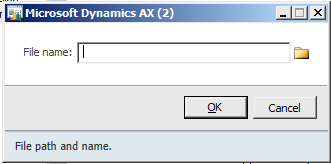
3. Now you will find a browser like this.

4. Select your CSV file and proceed.

Regards,

SQL/SSRS Interview questions I thought of blogging some SQL/SSRS interview questions.

Below are some. I will add more, when I complete the compilation 1. What is OLTP(Online Transaction Processing)? OLTP stands ...