Monday, 6 January 2014

Creating a delete action in ax 2012


None:-      No action will take place on related records in the RentalTable when you delete a record in the CarTable.

Cascade:- All records in RentalTable related to the record being deleted in CarTable will also be deleted.

Restricted:- The user will get a warning saying that the record in the CarTable cannot be deleted because transactions exist in table RentalTable. The user will be unable to delete the record in CarTable if one or more related records exist in the RentalTable.

Cascade + Restricted:- This option is used when deleting records through more than two levels. Let's say that another table existed that had a cascade delete action against CarTable and the CarTable had a
Cascade + Restriced delete action against Rental Table. If the record in the top level table was about to be deleted it would also delete the related records in CarTable. In turn, all the records in RentalTable related to the records being deleted from CarTable would also be deleted. If only a record in CarTable was about to
be deleted, the user would get the same message as when using the Restricted method.

Dynamic query in ax 2012


static void queryRunRentalCarListAOT(Args _args)
{
Query query;
QueryBuildDataSource queryBuildDataSource;
QueryBuildRange queryBuildRange;
QueryRun queryRun;
CarTable carTable;
RentalTable rentalTable;
;
query = new Query(querystr(RentalCarList));
queryBuildDataSource = query.dataSourceTable(tablenum(CarTable));
queryBuildRange = queryBuildDataSource.findRange(fieldnum(CarTable, ModelYear));
queryBuildRange.value("2008..");
queryRun = new QueryRun(query);
while (queryRun.next())
{
carTable = queryRun.get(tablenum(CarTable));
rentalTable = queryRun.get(tablenum(RentalTable));
info (strfmt("CarId %1, RentalId %2", carTable.CarId, rentalTable.RentalId));
}
}


static void queryRunRentalCarList(Args _args)
{
Query query;
QueryBuildDataSource queryBuildDataSource1,
queryBuildDataSource2;
QueryBuildRange queryBuildRange;
QueryBuildLink queryBuildLink;
QueryRun queryRun;
CarTable carTable;
RentalTable rentalTable;
;
query = new Query();
queryBuildDataSource1 = query.addDataSource(tablenum(CarTable));
queryBuildRange = queryBuildDataSource1.addRange(fieldnum(CarTable, ModelYear));
queryBuildRange.value("2008..");
// Add the second datasource to the first data source
queryBuildDataSource2 = queryBuildDataSource1.addDataSource(tablenum(RentalTable));
queryBuildLink = queryBuildDataSource2.addLink(fieldnum(CarTable,CarId),fieldnum(RentalTable, CarId));
queryRun = new QueryRun(query);
// Loop through all the records returned by the query
while (queryRun.next())
{
carTable = queryRun.get(tablenum(CarTable));
rentalTable = queryRun.get(tablenum(RentalTable));
info (strfmt("CarId %1, RentalId %2", carTable.CarId,
rentalTable.RentalId));
}
}

How to quickly create a project with all objects of a specific layer


How to quickly create a project with all objects of a specific layer

Challenges:

  • When investigating code in Ax, it may be useful to get a quick overview of all the code in a specific layer.

  • When you intend to move code from one layer to another, you may need a list of objects in a specific layer.
Follow these steps in order to get a solution for both challenges with ease:

Step 1: Create a new project.


You can rename your project as desired, we'll call it Project_USR_Layer for now. Then open the newly created project.


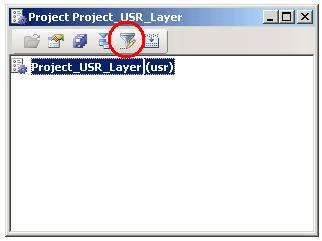
Step 2: Choose Advanced Filter/Sort from the toolbar.


If you are into keyboard short-cuts, you can use Ctrl-F3 for this as well.
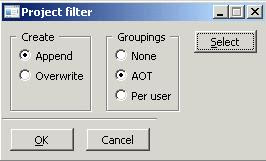
A new dialog pops up.


I like my objects grouped in the project as they are grouped in the AOT, so I've chosenGroupings - AOT.


Step 3: Select the required objects.
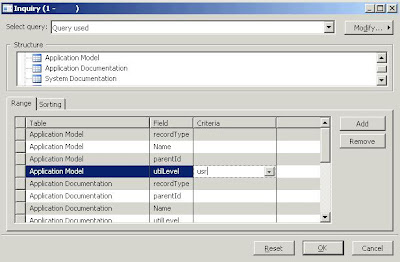
Use the Select button on the dialog to select the objects you require for your project.
We wanna select all AOT objects from a specific layer, so we'll use the UtilLevel field in the selection criteria.


From the screenshot you can see that all objects from the USR layer are selected. If desired, you can limit the type of AOT objects for your project as well, by using the recordTypefield.

Confirm twice and the objects are added to your project. This may take some time, so be patient :-)
Similar challenge:

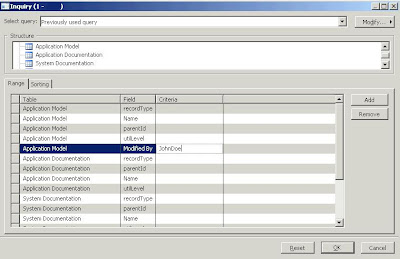
You can use the same method for selecting AOT objects modified/created by a specific programmer. Just set different selecting criteria in your query.


Microsoft Dynamics AX 2012 Reporting: How to run reports that executes longer than 10 minutes


Sometime ago we run into problem when reports that executes longer than 10 minutes are running into timeout error. To overcome this problem:
- For reports printed on screen job you need to install kernel hotfix KB 2642168 - the KB article is still not published on Partner source but you should be able to get hotfix through Microsoft Dynamics AX Support team
- For reports printed on screen or in batch. You need to:

  1. Open configuration:
    1. If a configuration file has been created for reporting services according tohttp://technet.microsoft.com/en-us/library/hh389774.aspx (make sure it’s in the right folder!), open that file in Microsoft Dynamics Ax Configuration Utility
    2. If no such configuration file has been created, open the Microsoft Dynamics Ax Configuration Utility configuration - change configuration target to Business Connector (non-interactive use only) - this configuration is stored inHKEY_LOCAL_MACHINE\SOFTWARE\Microsoft\Dynamics\6.0\Configuration\
  2. On the Connection tab, select Configure Services
  3. Select the service binding to modify under the Bindings node (QueryServiceEndpoint in this case) and tweak the SendTimeout or ReceiveTimeout parameter as necessary. SendTimeout is the one that needs tweaking:
  4. Restart SQL Reporting Services and Microsoft Dynamics Ax Client

How To: Addressing SSRS Session Timeouts

Dealing with Dynamics AX 2012 Reporting Timeouts and Thresholds

Dynamics AX 2012 uses SQL Server Reporting Services for rendering reports. SSRS gets the data from AOS by using a custom SSRS Extension that uses WCF to communicate with AOS.
Depending on the size of the data and the complexity of the report, it might take a long time for the report to execute, resulting in various timeout and other thresholds being hit, which might cause the report rendering to fail. This article attempts to identify all the places where rendering large reports may cause thresholds could be hit and suggest tweaks or workarounds to address them.

A. Getting data ready

If the report uses Report Data Provider (RDP) to get the data, then it should be modified to use a pre-processed RDP class as the data source to invoke processing logic before a call is made to Reporting Services. For more information about RDP classes, see Using Report Data Provider Classes to Access Report Data and Report Programming Guide.

B. Report Execution Timeout

SSRS defines a Report Execution Timeout, which specifies the number of seconds after which the reporting processing times out. The default value for this is 30mins. If the report execution takes longer than that, then the report execution will fail.
This setting can be updated at the Report Server level or at an individual report level
Site level Settings
The report execution timeout at the report server level should be set to a value greater than the time required for the largest report to render. Alternately it can be set to never time out. This can be done in one of two ways -
1. Using the Report Manager - From the Site settings, the Report Timeout property can be changed.
clip_image002
2. This can also be changed using SQL Server Management Studio – In SSMS, Right-click the name of a report server, then click Properties. On the Server Properties window, click the Execution page and change the value for “Limit report execution to the following number of seconds”.
Report level Settings
The report execution timeout can also be set on each report, using Report Manager. Go to the report properties (see how) and in Processing Options, select either “Do not timeout report” or change the “Limit report processing to the following number of seconds” option.
clip_image004

C. SSRS Session Timeout

SSRS maintains a User Session which may time out if the report takes a long time to execute, causing the report execution to fail. This can be fixed for the report server by setting the 2 properties SessionTimeout and SessionAccessTimeout using the rs.exe tool. Again, these should be set to be greater than the time taken to render the largest report.
You should configure these values to be no less than the time it takes to render your largest report. Here is a sample script for rs.exe which will set these values for you:

Public Sub Main() Dim props() as [Property] props = new [Property] () { new [Property](), new [Property]() } props(0).Name = "SessionTimeout" props(0).Value = timeout props(1).Name = "SessionAccessTimeout" props(1).Value = timeout rs.SetSystemProperties(props) End Sub
You can run this script with the following command:
rs.exe -i <Path to SessionTimeout.rss> -s <Report Server URL> -v timeout="6000"
The tool rs.exe is usually located at “c:\Program Files(x86)\Microsoft SQL Server\110\Tools\Bin”.
The timeout is expressed in seconds, so this example sets the SessionTimeout and SessionAccessTimeouts to about an hour and a half. 
Example: c:\Program Files(x86)\Microsoft SQL Server\110\Tools\Bin\rs.exe -i c:\Temp\sessiontimeout.rss -s http://localhost/reportserver -v timeout="6000"
Important: Do this with caution, keeping a session around longer than necessary can cause your ReportServerTempDB database to grow larger since temporary session snapshots will not be aged out as often.  Also, this utility must be run as Administrator.
You can also check out this msdn blog post for more information.

D. WCF Timeouts and Thresholds

SSRS uses the Query Service (which is a WCF service exposed by the AOS) to get data. For reports with large datasets, the default WCF configuration may cause WCF to hit some thresholds at runtime. So the WCF configuration can be tweaked as follows -
Server side settings –
- Open the Ax32Serv.exe.config file (it is typically under c:\Program Files\Microsoft Dynamics AX\<version>\Server\MicrosoftDynamicsAX\Bin).
- Locate the QueryServiceBinding element. The default value for the sendTimeout on this element is 10mins.
clip_image007
- Increase the sendTimeout to a larger value, say 30mins, like so – sendTimeout=”00:30:00”
Client side settings –
- Create a new local client configuration using the Microsoft Dynamics AX 2012 Configuration as explained here.
clip_image009
- On the Connection tab, click on “Configure Services” to open the SVC configuration utility.
clip_image011
- Navigate to Bindings -> QueryServiceEndpoint (netTcpBinding).

Update the values for the following properties -
o SendTimeout – This is set to 10mins by default. Increase it to a larger value, like 30 mins.
o MaxReceiveMessageSize – This is set to 2147483647 by default. Increase it to double that value or 4294967295. The maximum allowed value is Int64.MaxValue.

What to do: Only integrated security is supported for AX queries ssrs reports in ax 2012

In Dynamics Ax 2012, Microsoft SQL Server Reporting Services (SSRS) is the primary reporting platform. So all the default preconfigured reports that are shipped with Microsoft Dynamics Ax run on the Reporting services platform. 


And therefore, the below installations should be done perfectly:
  1. SQL Server Reporting Services (SSRS - Part of SQL Installation)
  2. Reporting Server extensions (Business Intelligence components of Microsoft Dynamics Ax)
If your installation went wrong somewhere, then there is a chance that you might get the error:Only integrated security is supported for AX queries when trying to open an report in Ax 2012.

Or you might see that the report will be opened, but you will be asked to enter the username and password to proceed further. Below is the related screenshot:

Solution if error occurs for a single report:
  1. Identify the Report name
  2. Open Reporting Services Configuration Manager ( All Programs > Microsoft SQL Server 2008/2012 > Configuration Tools > Reporting Services Configuration Manager)
  3. Go to "Report Manager URL" Tab and click on URL
    Typically, URL will be in the format http://<ServerName>:80/Reports
  4. Select the particualr Report under DynamicsAx Folder
  5. In the opened page, select Data Sources on the left pane.
    And apply Windows integrated security and click Apply.
  6. Now the report should be opened automatically without any error message and also shouldn't ask for any username and password.

Solution if errors pops up for all SSRS Reports:

You can still apply the above approach for all the reports and it will work. But that is not the right approach for obvious reason, will take a lot of time to do that. 
More appropriate solution would be to delete all the reports and redeploy all the reports. Steps are as follows:
  1. First step is to delete all the existing SSRS Reports. For doing this you can navigate to DynamicsAx folder and delete the entire folder.
  2. Then go to Report servers form in Dynamics Ax 2012 and click on "create report folder" button to create the Folder DynamicsAx again.
  3. Now you can open Powershell (Administrative Tools > Microsoft Dynamics Ax 2012 Management Shell). Make sure you run Powershell as Administrator.
  4. Deploy all the reports with the help of command:
    Publish-AXReport -ReportName *
  5. And once, all the reports are deployed you should be good to go.

Corrupted Database? Think Again! It Might Simply Be a Corrupted Layer (aod) File

Corrupted Database? Think Again! It Might Simply Be a Corrupted Layer (aod) File.


Recently we had what appeared to be a major issue occur on our Development AX environment. After performing a Synchronize on the Data Directory in the AOT, we received several warning messages, and then when attempting to view various forms we were receiving SQL errors, and what appeared to be missing data.

The initial assumption was that the Database had become corrupted. So we went through the process of doing a backup of the database in our Testing AX environment (which had no issues), and restoring it to the Development AX environment. After the restore however, we still received the same errors as before, which had us puzzled for a moment. Then my colleague, Tim Golisch, remembered something very important.

Not everything in AX is stored in the Database, in fact, everything relating to the layers, are actually stored in AOD files, which reside in the: C:\Program Files\Microsoft Dynamics AX\50\Application\Appl\[DB NAME] folder.

So I stopped the AOS, removed the axuser.aod file, started the AOS, opened the client, and wala! Everything was back to normal

If you want to Refresh


CustTable_ds.refresh();
CustTable_ds.research();
CustTable_ds.reread();

SQL/SSRS Interview questions I thought of blogging some SQL/SSRS interview questions.

Below are some. I will add more, when I complete the compilation 1. What is OLTP(Online Transaction Processing)? OLTP stands ...